

Cart is empty

Curabitur placerat magna sollicitudin
Operating SuperPro 7500N Programmer on Local Network via LAN
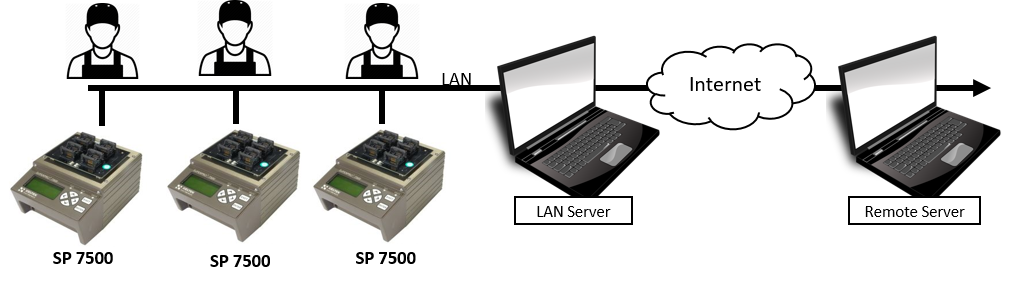
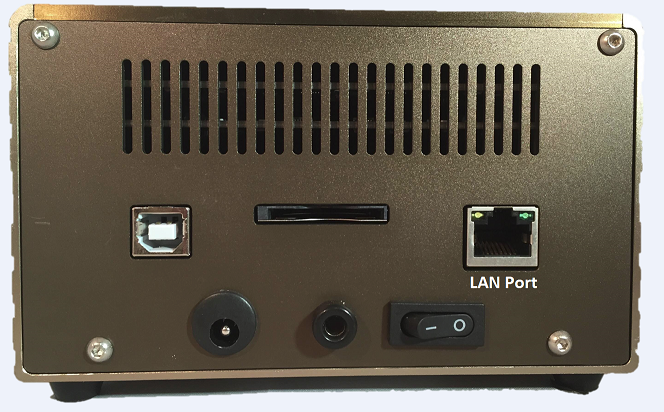
Most production programming applications require programmers to be operated remotely. Remote control can be achieved using the LAN port on the SuperPro 7500N programmer. Using the LAN port, programmers can be connected to a local network and remotely controlled by any computer on the network. In this setup, the PC controlling the SuperPro 7500N acts as the server, and the SuperPro 7500N acts as the client.
Advantages of Operating the SuperPro 7500N Remotely
-
Centralized Control:
All programming-related settings are managed from the server, including chip selection, data file loading, configuration settings, memory area selection, and assigned writing tasks for different programmer machines. This allows one trained operator to manage the process and helps reduce operator errors. -
Higher Throughput:
Task switching speed is greatly improved, helping reduce idle time and increase production throughput. -
Reduced Errors:
The programming process can be monitored in real time to reduce error risk. Once an error is detected, the system signals the user and stops operation immediately. -
Statistical Management:
Real-time production statistics can be generated to help managers monitor manufacturing data. -
Better Confidentiality:
Confidential data is stored on a remote server. The operator only needs to remove programmed chips and insert blank chips into the socket.
SuperPro 7500N Network Programming
The SuperPro 7500N is a network production programmer by Xeltek with a LAN interface. It can be connected directly to a LAN and supports gang socket adapters with four sockets for programming multiple chips at one time. The eMMC programming speed is up to 10 times faster than other universal programmers in its category.
SuperPro 7500N Software
The enhanced SuperPro 7500N software includes a user-friendly interface for controlling the programmer in LAN mode. Setting up LAN mode is similar to USB mode. An Ethernet cable is connected between the SuperPro 7500N and the network hub.
LAN Mode Preparation
Before operating the programmer in LAN mode, set the server and client IP address in USB mode through the SuperPro 7500N software.
When the programmer is in LAN mode, do not connect the SuperPro 7500N to a PC using the USB cable.
Once the LAN connection is established, select the device part number, load the data file, and perform program, verify, or erase operations the same way as USB mode.
Establish LAN Communication Instructions
- Connect the SuperPro 7500N to the PC using a USB cable, then turn on the programmer.
- Wait 10 seconds for programmer hardware initialization on the computer screen, then launch the SuperPro 7500N software. The software should not start in Demo Mode.
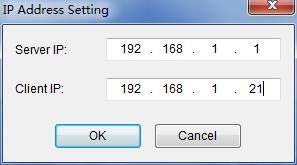
- Set the server and client IP addresses by clicking IP Address Settings from the Option menu.
- The server IP address will be automatically detected by the SuperPro 7500N software. If it is not automatically detected, open the command line and type ipconfig.

To assign the client IP address, check your network and select an available IP address. For example, the network range may be from 10.1.10.1 to 10.1.10.254.
- Do not use network addresses ending in 1 or 255, since they are not normally used for this type of setup.
- Keep the first three fields fixed and choose the last number from the available range.
- If the selected IP address conflicts with another machine on the network, try another address.
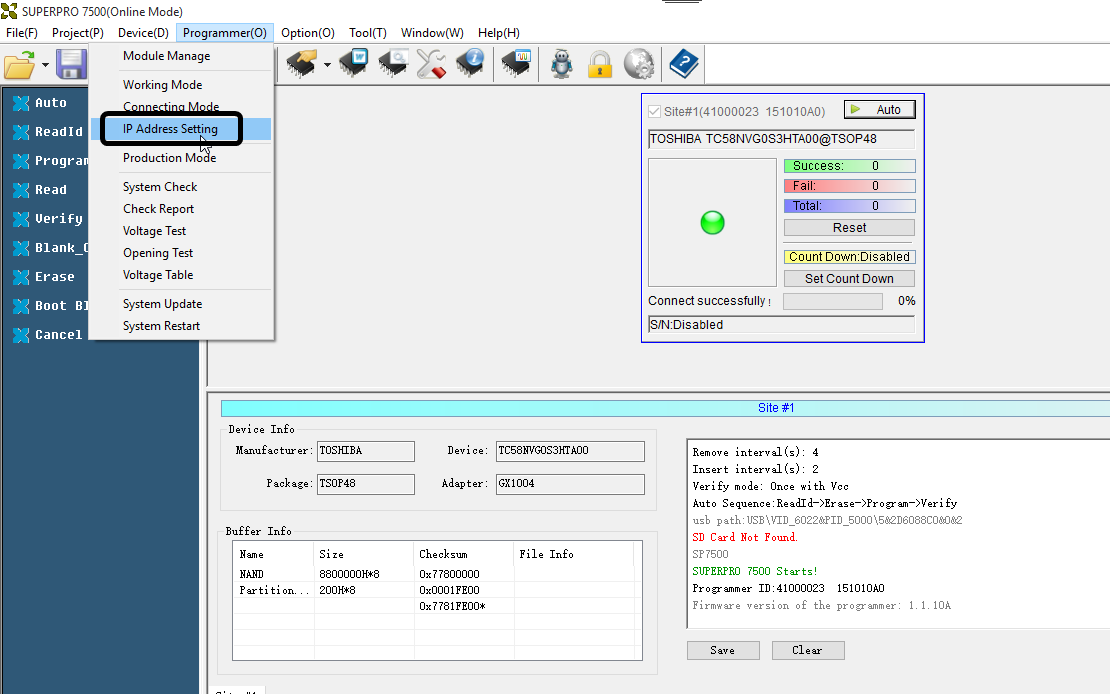
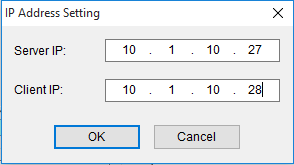
- After the IP addresses have been set, turn off the SuperPro 7500N hardware.
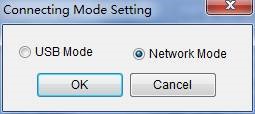
- Go to Programmer > Connection Mode, then select Network Mode.

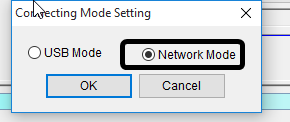
- Close the SuperPro 7500N software.
- Unplug the USB cable.
- Connect the SuperPro 7500N to the network hub using an Ethernet cable, then turn the programmer on.
- Wait 10 seconds for hardware initialization, then open the SuperPro 7500N software.
- It may take up to 30 seconds for the software to detect the SuperPro 7500N hardware in network mode.
If detection takes longer than 30 seconds, the assigned IP address may not be within the network range, or there may be an IP conflict with another machine on the network.
Once the SuperPro 7500N is detected by the software, the programmer can be operated from a remote location.
Operating Multiple SuperPro 7500N Programmers on a Network
Multiple SuperPro 7500N programmers can be operated on a LAN network by a single operator. Follow these steps:
- Click Module Setting in USB mode by going to Programmer > Module Manage.

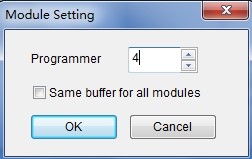
- Restart the software and set the IP address for each programmer by going to Programmer > IP Address Setting.
In this setup, the PC is used as the server and each programmer is used as a client.
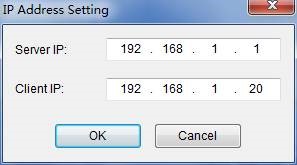
- Set the connection mode by going to Programmer > Connecting Mode, then select Network Mode.
After completing the settings, restart the software and programmers. Connect the programmers to the PC through the cable or LAN port.
Do you have any questions?
Ask Us Now


